To create a Discourse room, log in to Canvas. Click on the course you would like to enable Discourse. When you have clicked on the course, go to "Settings" at the buttom left hand menu. Click "Create Discourse Forum" in the right hand menu:
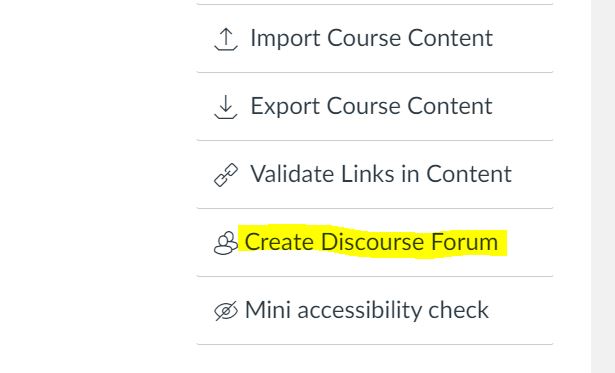
Click "OK" to confirm that you wish to create the Discourse room. The room will now be created and a button named "Discourse" will be available in the left hand menu in Canvas. Simultaneously with the creation of the Discourse room, an message will automatically appear under "Announcements" in the course room in Canvas. The message describes what the students must to do gain access to the course's discussion room in Discourse. The message will appear regardless of whether the course will use Canvas in the teaching or not.
By clicking on "Discourse" in the left hand menu you will be directed to a page in Canvas with the following message:
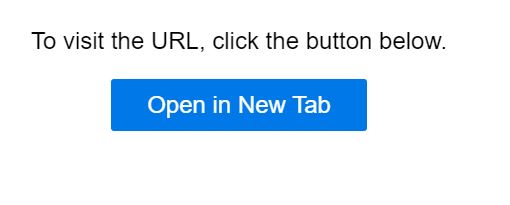
Click on the "Open in new tab" and create a user with your FEIDE-login. As soon as the user has been created, you will receive an email from "UiO Discourse" asking you to confirm the user creation. Once this has been done, it will take a few minutes before you can access the course's Discourse room.
If you receive the following error message when trying to access Discourse: "No access - your membership in the forum may not have been transferred yet", please wait a few minutes and try again. If the problem persists, contact canvas@mn.uio.no.
Students can access the Discourse room easily by clicking the "Discourse"-button in the left side menu in Canvas.