ITA has migrated to UiO’s new printing system. There are two HP printers at the institute with card readers that can be used. With the new printing you have to use your ID card at one of the two printers to print your document.
Available printers
1st floor (1. etasje): print, copy, scan, stapling, hole punching, A3
4th floor (4. etasje): print, copy, scan
Printing with Web Print
Go to print.uio.no in your browser -
Note: ".. only available on Eduroam Wifi (and UiO's wired network)"
or
Print from a private PC/Mac
"Download the installer and run it"
And lastly:
"You should send your print job to the UiO-Print printer queue."
NB! Printing is only available in the GUI due to 2FA, not on the command line (CLI) anymore so ssh to a UiO machine will not work any longer.
Print queue
With the new printing system you no longer specify the printer you want to use. Instead you choose the queue "ricoh" (Windows and OSX) or "pullprint_Ricoh" (Linux), and you will be able to collect your printouts from any of the Institutes three printers using your ID card. The print queues should/will be installed on your desktops by the IT dept. at the institute. For printing from laptops, please see below.
Mobile printing
Mobilprint.uio.no allows you to upload and print documents independently of the computer or operating system you are using. The following document types are supported: Microsoft Office, OpenOffice, PDF, JPG, GIF, PNG, TIF, BMP, TXT.
Printing history, quota, delete print job
You can see your printing history by logging on to http://brukerinfo.uio.no and navigate to the "Printing" tab.
Students have to pay for prints. To learn more, check out USITs pages in english or norwegian.
You can see list of pending print jobs, delete print jobs, manage PIN/PUK codes etc from SafeCom's web UI
Print from terminal
lpr -P pullprint_Ricoh <filename.pdf>
NB! The only supported file formats for printing from command line are PDF, PS and TXT (plain text documents).
For more options, see 'man lpr'. You can check the printer queue with
lpq -P pullprint_Ricoh
Print from Mac OS X
Rewritten 2021-10-08 as printing has moved from smb to lpd (due to a MS update on the spooling servers)
Systems prefs - Printers & Scanners - "+" (add):
Type: LPD
URL:  lpd://pullprint.uio.no/ricoh
Name: ie. "pullprint.uio.no LPD"
Use:  Generic PS or ie. Ricoh Aficio MP C4502A or
Ricoh Aficio MP600X PS from folk.universitetetioslo.no/
OBS! If your local username at your laptop is not the same as your UiO username use
URL: lpd://your-UiO-username@pullprint.uio.no/ricoh
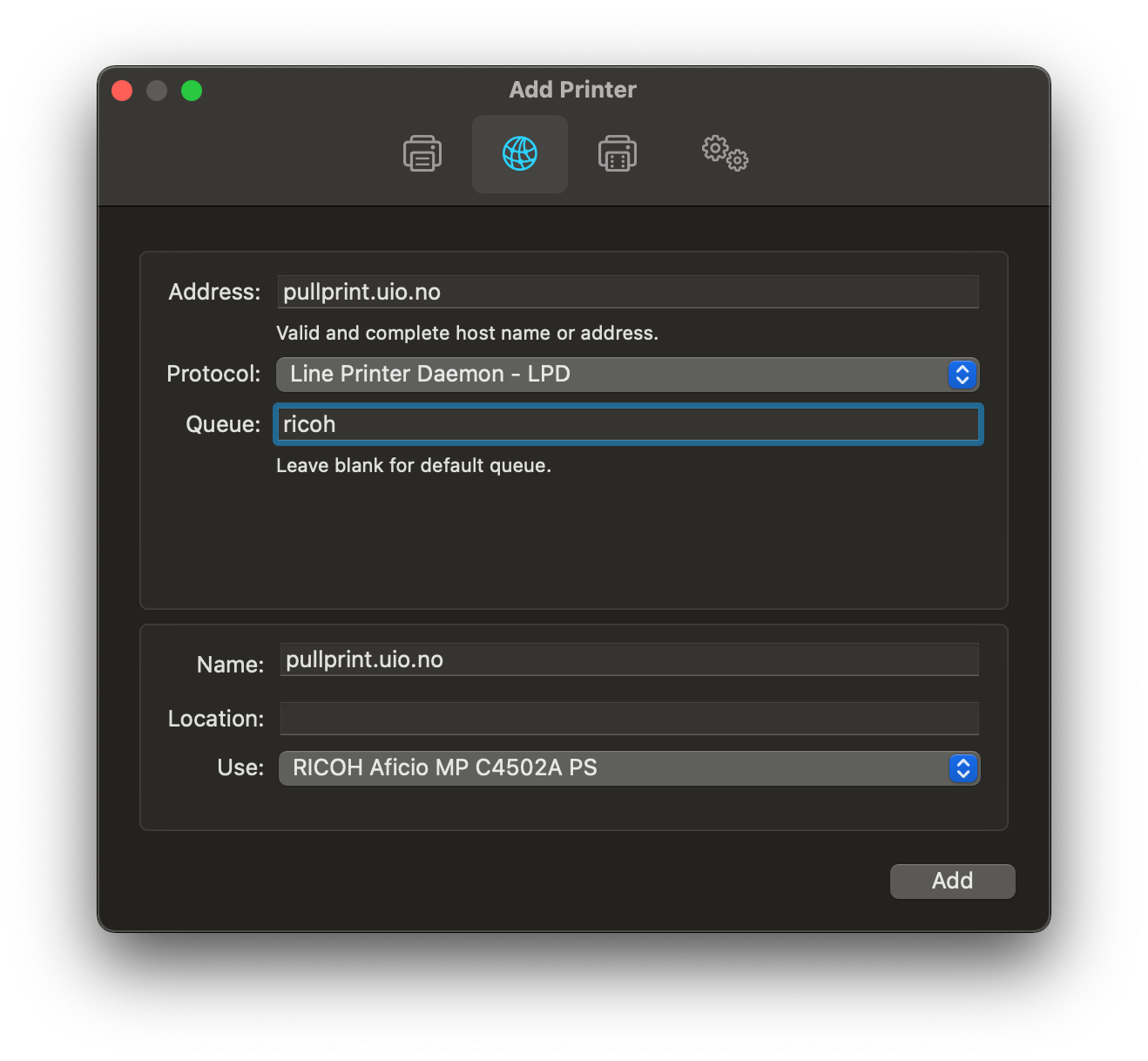
Check https://utskrift.uio.no/ for any documents in the spooler queue after printing
Set up printers on laptops running Mac OSX
(Don't follow USIT's guide. )
See above.
Print from laptop running Linux
Follow USIT's guide (Norwegian).
Print from laptop running Windows
Follow USIT's guide