A computer not managed by UiO?
See instructions here: Storage on hypatia - WinSCP
The rest of this text assumes you have a Windows machine managed by UiO.
Using the hypatia shortcuts
On Windows machines managed by Geosciences IT, there will usually be shortcuts to hypatia storage. In Windows Explorer, look under "This PC":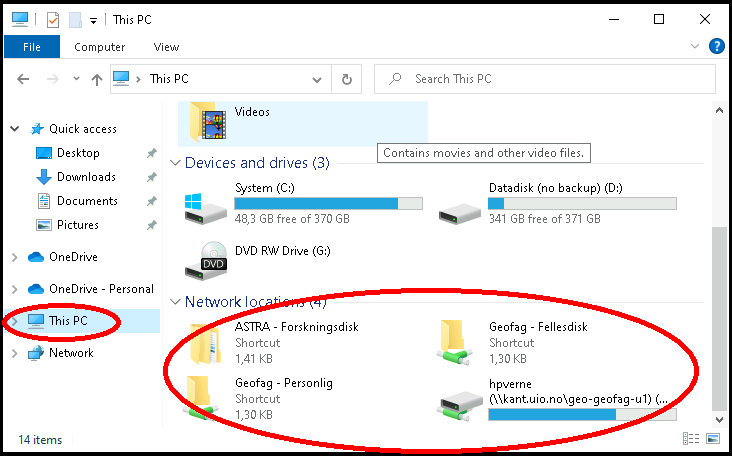
Sometimes these shortcuts are missing, or you want "quick access" to some specific folder on hypatia. Keep reading.
Pinning a folder to the Quick access section
The Quick access section can be found at the top of the navigation pain on the left side of the File Explorer. To pin the folder to the Quick access section you should first navigate to the folder on hypatia.uio.no. Enter
\\hypatia.uio.no\lh-mn-geofag-felles
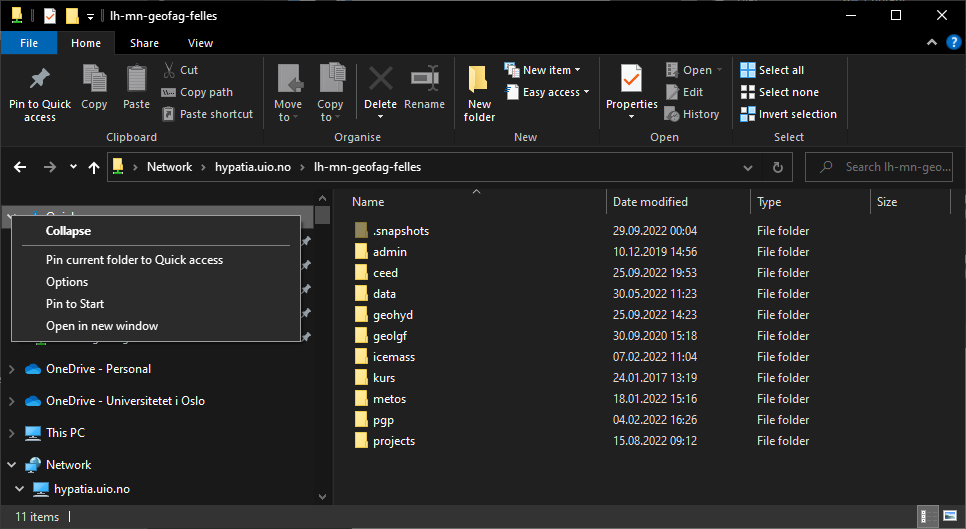
in the address bar in the File Explorer. Navigate to your desired destination. You can then press the 'Pin to Quick access' icon in the 'Home' tab of the ribbon as shown in the screenshot below. Or you can right-click on Quick access in the navigation pane. Select Pin current folder to Quick access. This should give you an entry in the Quick access section that is a shortcut to the selected folder.
Mounting the network share as a drive letter
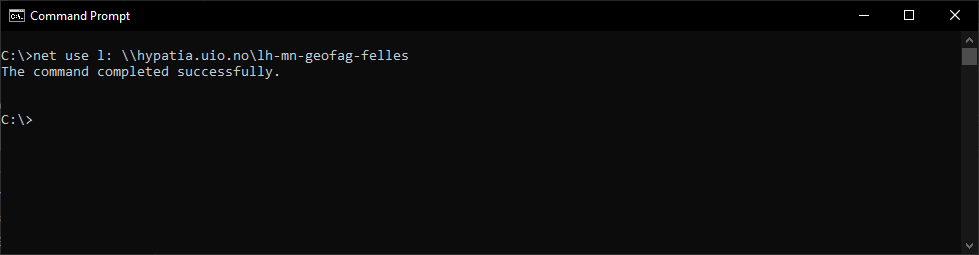
To mount the network share as a drive letter you should open a Command prompt from the Start menu. Enter the command
net use l: \\hypatia.uio.no\lh-mn-geofag-felles
and the network share should be mounted under the drive letter l:.
Personal storage on hypatia.uio.no
Personal storage folders on hypatia.uio no will be available on the network share
\\hypatia.uio.no\lh-mn-geofag-personlig
The procedure for pinning a folder here is similar to what is described above.