Your First Cup of Java (for UNIX)
for Your First ProgramThe following instructions will help you write your first Java program. These instructions are for users of UNIX-based platforms, including Linux and Solaris.
1. A Checklist 2. Creating Your First Application
a. Create a Java Source File
b. Compile the Source File
c. Run the Program3. Creating Your First Applet To write your first program, you will need:
1. A ChecklistThese two items are all you need to write your first Java program.
- The JavaTM 2 Platform, Standard Edition.
- A text editor. In this example, we'll use Pico, an editor available for many UNIX-based platforms. You can easily adapt these instructions if you use a different text editor, such as VI or Emacs.
top
a. Create a Java Source File.
You have two options:
- You can save the file
on your computer and avoid a lot of typing. Then, you can go straight to step b.HelloWorldApp.java
- Or, you can follow these (longer) instructions:
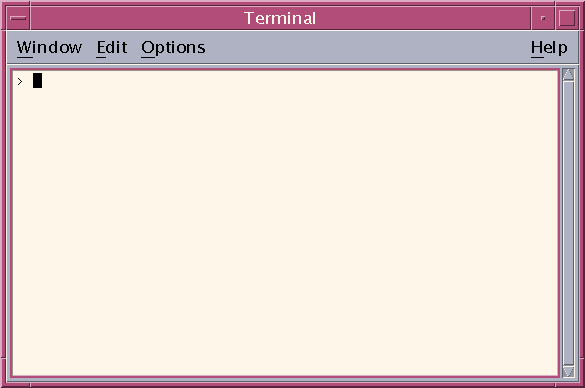
1. Bring up a shell (sometimes called terminal) window. When the window comes up, it should look like this:
When you first bring up the prompt, your current directory will usually be your home directory. You can change your current directory to your home directory at any time by typing cdat the prompt and then pressing Return.The Java files you create should be kept in a separate directory. You can create a directory by using the command
mkdir. For example, to create the directoryjavain your home directory, you would first change your current directory to your home directory by entering the following command:Then, you would enter the following command:
cd
mkdir javaTo change your current directory to this new directory, you would then enter:
cd javaNow you can start creating your source file.
3. Type the following code into the new buffer:
2. Start the Pico editor by typing picoat the prompt and pressing Return. If the system responds with the messagepico: command not found, then Pico is most likely unavailable. Consult your system administrator for more information, or use another editor.When you start Pico, it'll display a new, blank buffer. This is the area in which you will type your code.
Pico? VI? Emacs? Pico is probably the easiest of the three editors to use. If you're curious about how to use the other editors, however, check out these handy reference cards for VI
and Emacs
/**
 * The HelloWorldApp class implements an application that
 * simply displays "Hello World!" to the standard output.
 */
class HelloWorldApp {
    public static void main(String[] args) {
        System.out.println("Hello World!"); //Display the string.
    }
}
Be Careful When You Type 
Type all code, commands, and file names exactly as shown. The Java compiler and interpreter are case-sensitive, so you must capitalize consistently.
HelloWorldApphelloworldapp
4. Save the code by typing Ctrl-O. At the bottom, you will see the prompt
File Name to write:. EnterHelloWorldApp.java, preceded by the directory in which you wish to the create the file. For example, if you wish to saveHelloWorldApp.javain the directory/home/rortigas/java, then you would type/home/rortigas/java/HelloWorldApp.javaand press Return.You can type Ctrl-X to exit Pico.
b. Compile the Source File.
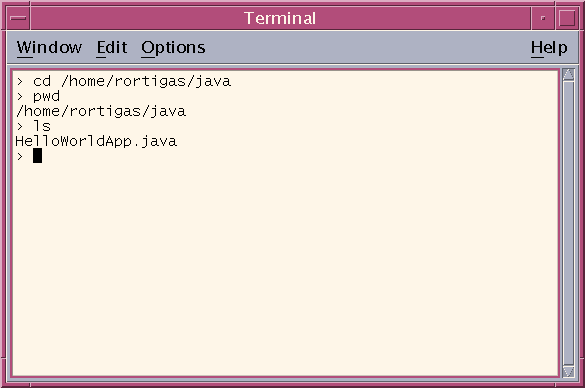
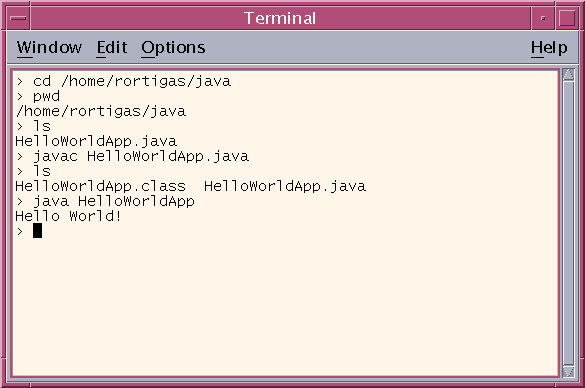
Bring up another shell window. To compile your source file, change your current directory to the directory where your file is located. For example, if your source directory is
/home/rortigas/java, you would type the following command at the prompt and press Return:
cd /home/rortigas/javaIf you enter
pwdat the prompt, you should see the current directory, which in this example has been changed to/home/rortigas/java.If you enter
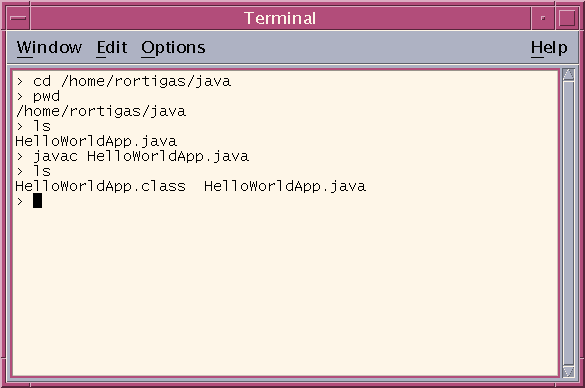
lsat the prompt, you should see your file.Now you can compile. At the prompt, type the following command and press Return: If your prompt reappears without error messages, congratulations. You have successfully compiled your program.
javac HelloWorldApp.javaThe compiler has generated a Java bytecode file,
Error Explanation javac: Command not foundIf you receive this error, UNIX cannot find the Java compiler,javac. Here's one way to tell UNIX where to findjavac. Suppose you installed the Java 2 Software Development Kit in/usr/local/jdk1.2.2. At the prompt you would type the following command and press Return:Note: If you choose this option, each time you compile or run a program, you'll have to precede your/usr/local/jdk1.2.2/javac HelloWorldApp.javajavacandjavacommands with/usr/local/jdk1.2.2/.HelloWorldApp.class. At the prompt, typelsto see the new file that was generated:Now that you have a
.classfile, you can run your program.
c. Run the Program.
In the same directory, enter at the prompt:
java HelloWorldAppNow you should see:
Congratulations! Your program works.
Error Explanation Exception in thread "main" java.lang.NoClassDefFoundError: HelloWorldAppIf you receive this error,javacannot find your bytecode file,HelloWorldApp.class. One of the placesjavatries to find your bytecode file is your current directory. So, for example, if your bytecode file is in/home/rortigas/java, you should change your current directory to that. To change your directory, type the following command at the prompt and press Return:cd /home/rortigas/javaIf you enter
If you still have problems, you might have to change your CLASSPATH variable. To see if this is necessary, try "unsetting" the classpath with the following command:pwdat the prompt, you should see/home/rortigas/java. If you enterlsat the prompt, you should see your.javaand.classfiles. Now enterjava HelloWorldAppagain.Now enterunset CLASSPATHjava HelloWorldAppagain. If the program works now, you'll have to change your CLASSPATH variable.